Flux.2 Klein Anatomy Horror? Here’s How to Fix
Hello creators — in this article we’re diving into the newly released Flux.2 Klein model and, more importantly, how to make it behave better inside ComfyUI.
Black Forest Labs describes Flux.2 Klein as their fastest image model so far, capable of both text-to-image generation and image editing, and able to run on consumer hardware with as little as ~13GB of VRAM. In my own testing, it really is impressive — but there’s a catch: it can be tricky to use well, especially when it comes to human anatomy.
A lot of people report the same problems:
- A man with three legs
- A woman with three hands
- Someone with six fingers
- Hands that look “melted” or fused together
So in this article, I’ll walk you through the specific settings I adjusted to reduce anatomy mistakes, based on hundreds of generations I ran to stress-test step counts, samplers, and CFG values. Along the way you’ll also see something important: these settings don’t just affect anatomy — they can subtly change composition, texture, and overall look too.
Before we jump into settings, though, let’s do a quick comparison with Z Image Turbo, because the differences help explain why Klein feels so compelling — and why people are willing to wrestle with it.
YouTube Tutorial:
Gain exclusive access to advanced ComfyUI workflows and resources by joining our community now!
Flux.2 Klein vs Z Image Turbo: What Stood Out in Testing
To keep things clear, here’s what I used for the comparison:
- Flux.2 Klein: fp8 version of the 9b model (file size 9.4GB)
- Z Image Turbo: bf16 version (file size 12.3GB)
There are plenty of ways to compare models, but I’m going to focus on what was most obvious across my tests.
1) Prompt Following: Klein Tracks Instructions More Reliably
In multiple cases, Flux.2 Klein simply followed prompts better than Z Image Turbo — especially prompts involving precise interactions between hands and objects.
For example, in one prompt I asked:
- The woman’s fingers should hover millimeters above a black queen chess piece
- The man’s hand should wrap around her wrist
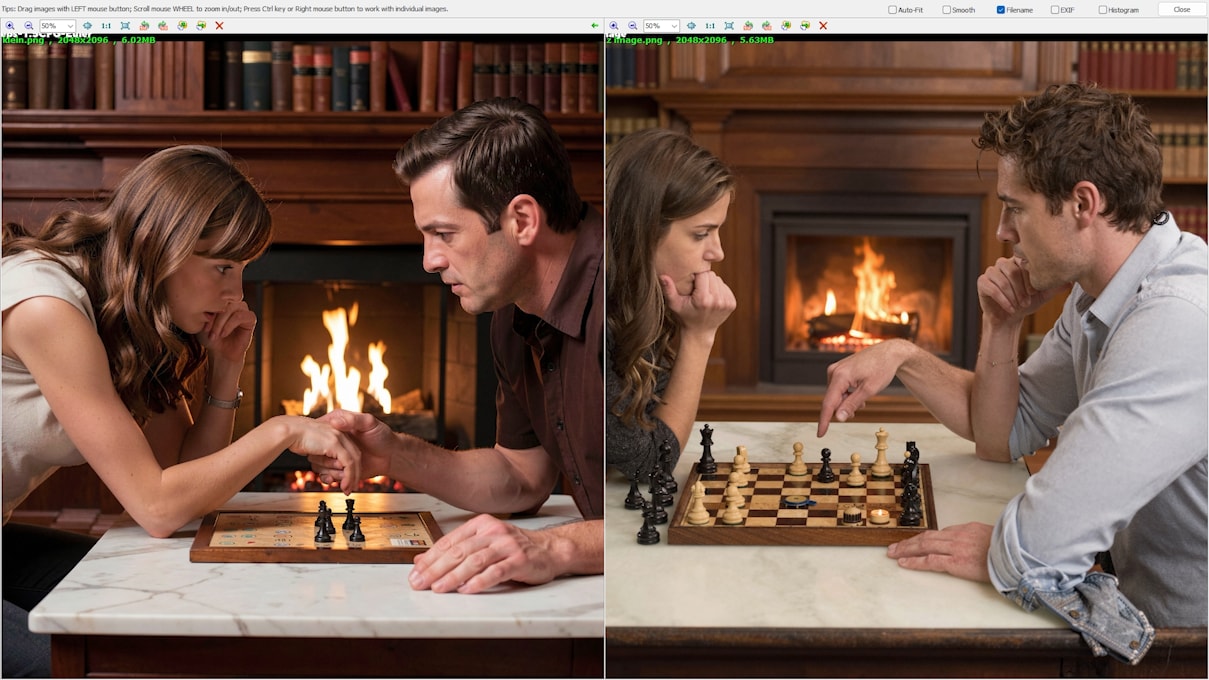
In my results, Klein was more likely to depict those interactions the way I described. Z Image sometimes drifted away from the instruction — and if you look closely, it can also produce anatomy problems of its own.
2) Composition: Klein Builds the Scene Layout More Accurately
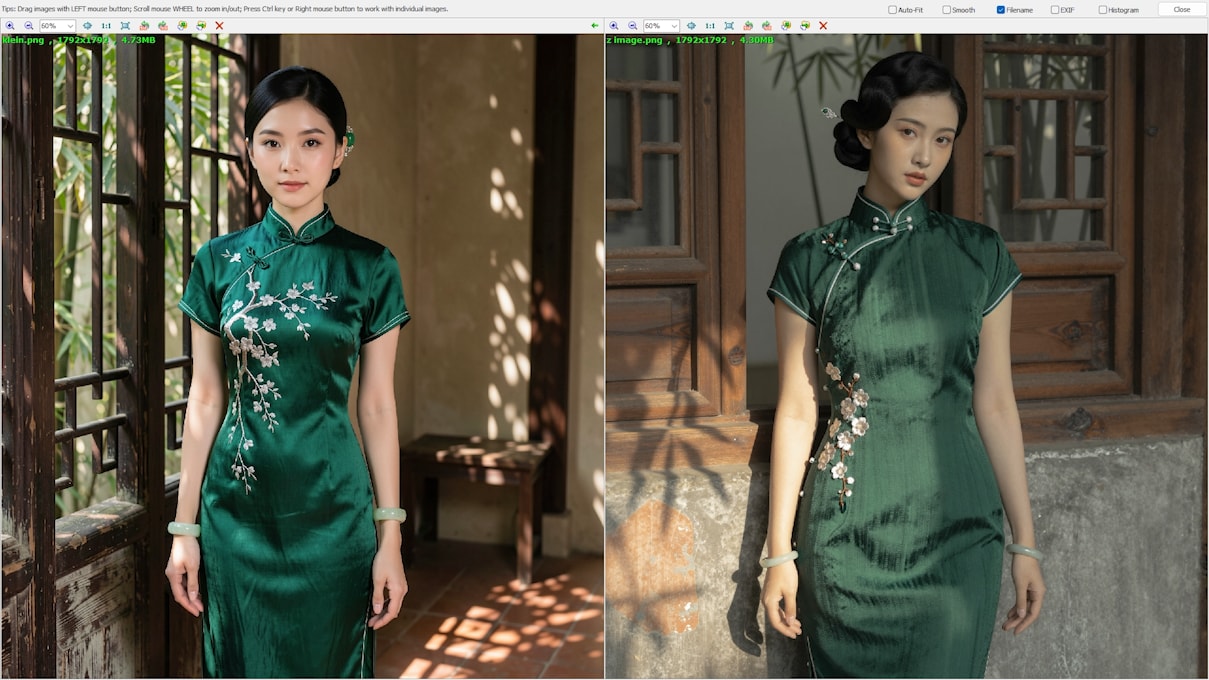
Here’s another prompt style where Klein repeatedly stood out: structured compositions.
In one test prompt, I described:
- A woman beside a wooden lattice window frame
- Soft, dappled sunlight coming through bamboo leaves outside
- Shadows moving across a worn, slightly uneven terracotta tile floor inside
In Klein’s output, you could clearly read the composition:
- Window frame on one side
- Woman positioned as described
- Sunlight and terracotta tiles visible the way the prompt implied
Z Image Turbo often failed to assemble those elements into the intended layout.
3) Skin and Texture: A Tradeoff You’ll Notice
One visual pattern I saw consistently: Flux.2 Klein often makes skin look more oily or plasticky than Z Image Turbo.
When zooming into faces, Klein could sometimes look like it had a slightly “plastic” sheen — especially on older skin. However, it often made up for it by producing sharper texture detail elsewhere, like:
- Sofa fabric
- Sweater knit texture
- Fine surface detail
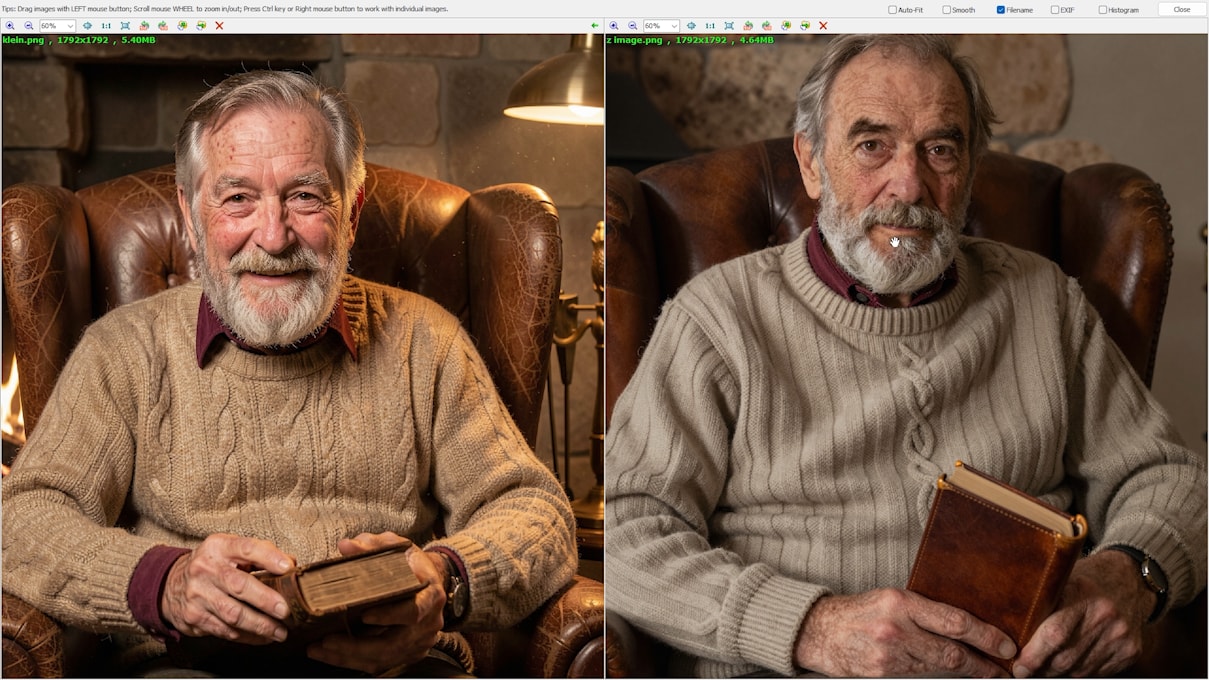
And in other scenes, Z Image Turbo produced skin that looked more natural and realistic.
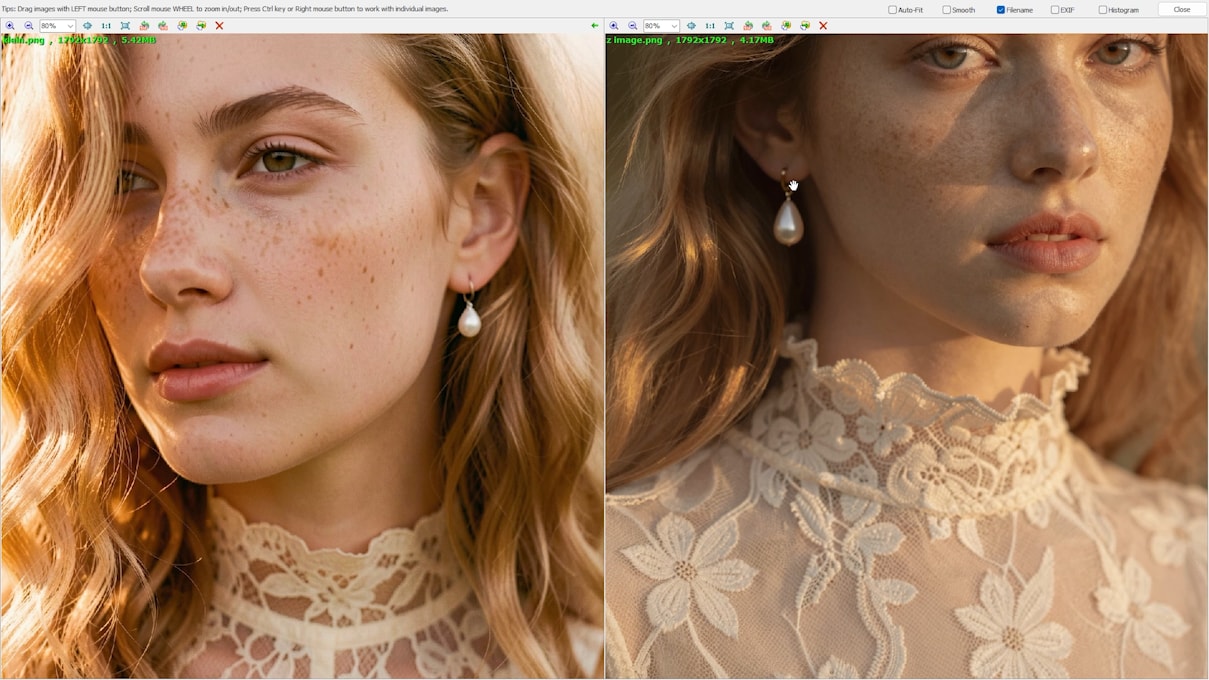
So this isn’t “one is always better.” It’s a tradeoff, and it depends on your subject and lighting.
4) Speed and Variety: Klein Feels Faster and More Diverse
If you’ve tried Flux.2 Klein, you’ve probably noticed two things immediately:
- It generates fast
- It produces more variety across a batch
For example, an 8-image batch from Klein tended to produce outputs that looked meaningfully different from each other.

When I generated similar batches with Z Image Turbo, the results often shared:
- Very similar faces
- Similar styles
- Sometimes even similar compositions

If you like exploration and iteration, Klein’s diversity can feel like a real advantage.
Understanding Flux.2 Klein in ComfyUI: Base vs Distilled Models
According to the ComfyUI blog post, Flux.2 Klein comes in two model types:
- Base model: optimized for fine-tuning and LoRA training
- Distilled model: mainly used for image generation
If you’re generating images, you’ll typically be using the distilled model.

And here’s where many users run into trouble: the distilled model is often suggested to run at 4 steps.
The 4-Step Recommendation (and Why It Often Causes Anatomy Problems)
Yes — 4 steps can work. But in my testing, 4 steps are sometimes not enough, especially for:
- Sitting poses
- Complex body positions
- Two-person interactions
- Hands doing something specific
Example Setup (4 Steps)
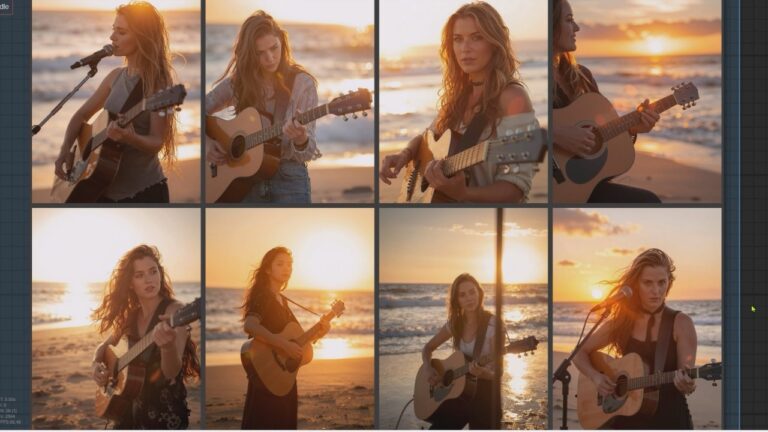
Here’s a simple ComfyUI test I ran using the fp8 9b model:
- Prompt: “a woman is sitting in a chair on a beach at sunset, playing guitar.”
- Sampler: Euler
- Steps: 4
- Batch size: 8
The outputs frequently had obvious anatomy issues: awkward hands, incorrect limbs, and inconsistent structure.

Pose Difficulty Matters (Standing vs Sitting)
Next, I changed only one thing: I made the woman stand instead of sit.
Same model. Same sampler. Same steps.
And the anatomy problems dropped noticeably.
That’s a key practical insight:
- Standing poses are “easier”
- Sitting poses increase failure rate
When the pose is simpler, the model is less likely to hallucinate extra limbs or collapse hands into blobs.

Step Count Tuning: The Main Lever for Reducing Anatomy Errors
After pose difficulty, the strongest lever I found was step count.
When I switched back to the original sitting pose and increased steps beyond 4, the improvements were often obvious. In many cases:
- Hands became more coherent
- Fingers separated correctly
- Limb placement stabilized

Complex Poses Benefit Even More
This became especially clear when I tested two-person interactions.
A classic failure example at low steps:
- At 4 steps, I got a man with three legs
- Hands were also messy or malformed
When I generated the same scene at 8 steps, the result was dramatically better.
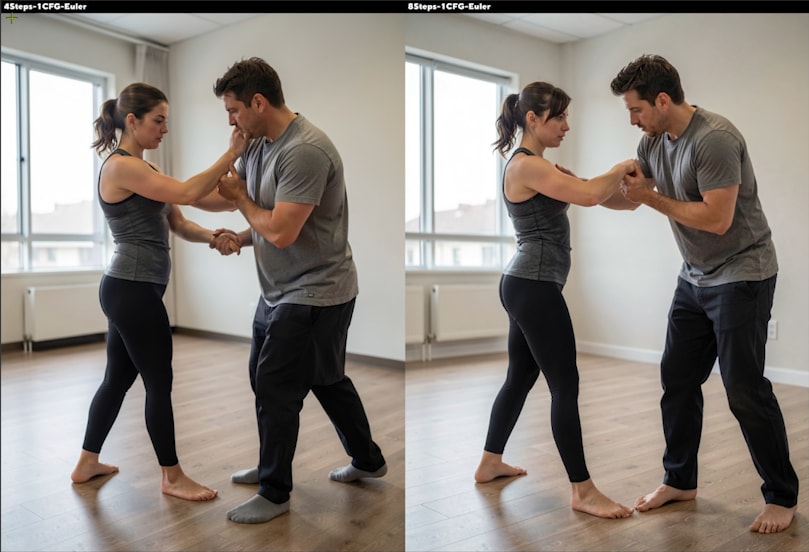
But More Steps Aren’t Always Better
Here’s the trap: increasing steps helps often, but not always.
I also saw cases where:
- 4 steps produced correct bodies and hands
- 8 steps introduced a new problem, like an extra finger
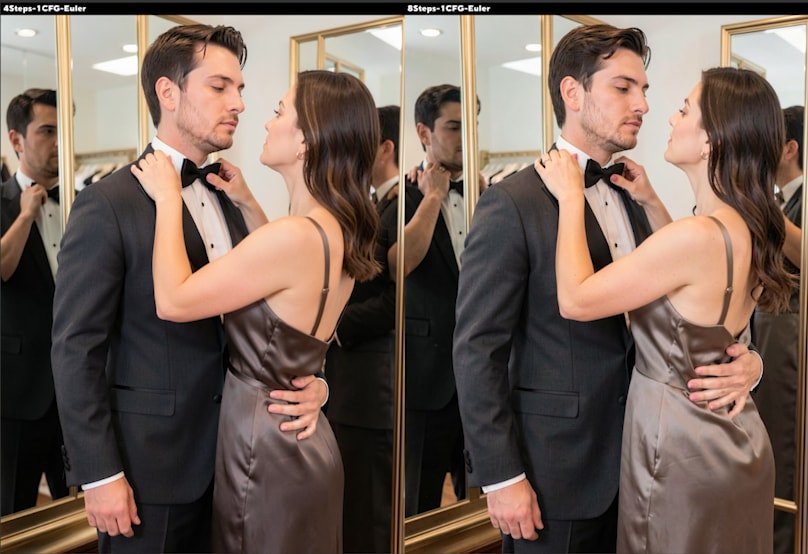
So the correct takeaway isn’t “always use more steps.”
It’s:
- Use more steps when anatomy is failing
- But watch for the point where extra steps start introducing new artifacts
Sampler Choice: Why “res 2s” Can Improve Anatomy
Step count isn’t the only lever. In some scenes, the sampler made a huge difference.
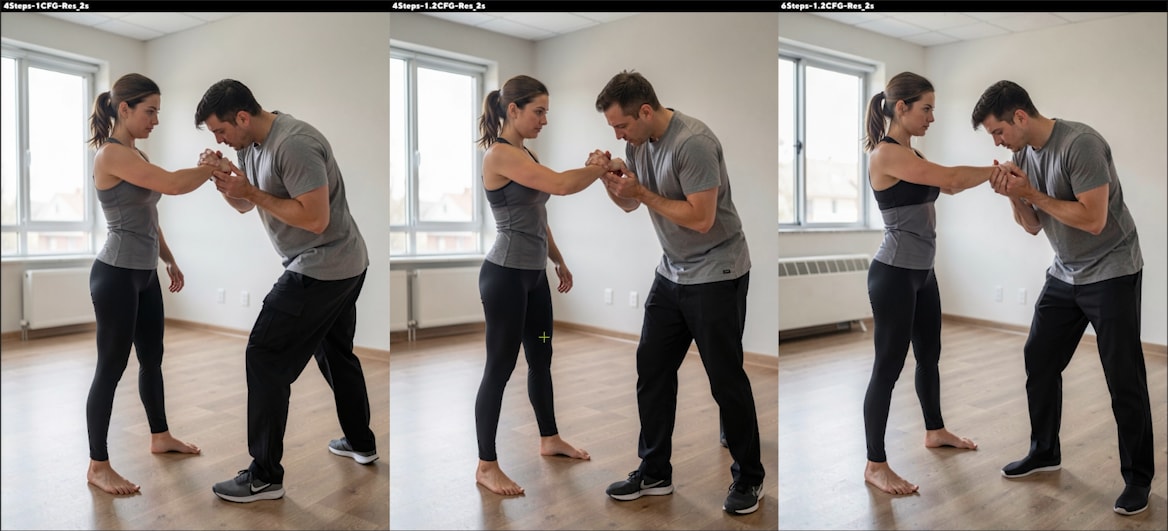
I tested the “res 2s” sampler and found that it can reduce anatomy errors in certain cases — sometimes even with relatively low step counts.
“res 2s” Example Behavior
In tests where Euler at low steps produced:
- 3-leg errors
- messy hands
- melted fingers
Switching to res 2s often cleaned it up. I generated multiple images with:
- Steps: 4 or 6
- Different CFG values
And the anatomy issues that were previously consistent simply disappeared in those samples.
Why “res 2s” Works (and Why It’s Slower)
This part matters because it explains the behavior:
- With Euler, each step uses one model call
- With res 2s, each step uses two model calls
So one res 2s “step” is heavier — roughly 2× the compute of an Euler step.
That’s why it can sometimes reduce anatomy errors with fewer steps than Euler: it’s effectively doing more work per step.
The tradeoff is obvious:
- ✅ Better anatomy in some cases
- ❌ Slower per step
CFG Tuning: Slightly Above 1 Can Fix Fingers (But Don’t Overdo It)
Now let’s talk about CFG, because this surprised a lot of people (including me).
In my tests, pushing CFG slightly above 1 sometimes fixed:
- fused fingers
- incorrect finger counts
- some body structure issues
But it’s not a “crank it up” setting — it behaves more like a narrow sweet spot.
CFG 1 vs 1.2 vs 1.5: A Sweet Spot Appears
Here’s a clean example pattern I saw:
- Same prompt
- Same sampler
- 8 steps
- Only CFG changes
Results:
- CFG 1.0: middle and ring fingers merged
- CFG 1.2: fingers separated correctly
- CFG 1.5: finger errors appeared again
So CFG can fix hands… and then break them again if pushed too far.
CFG Can Fix One Person, Then the Other
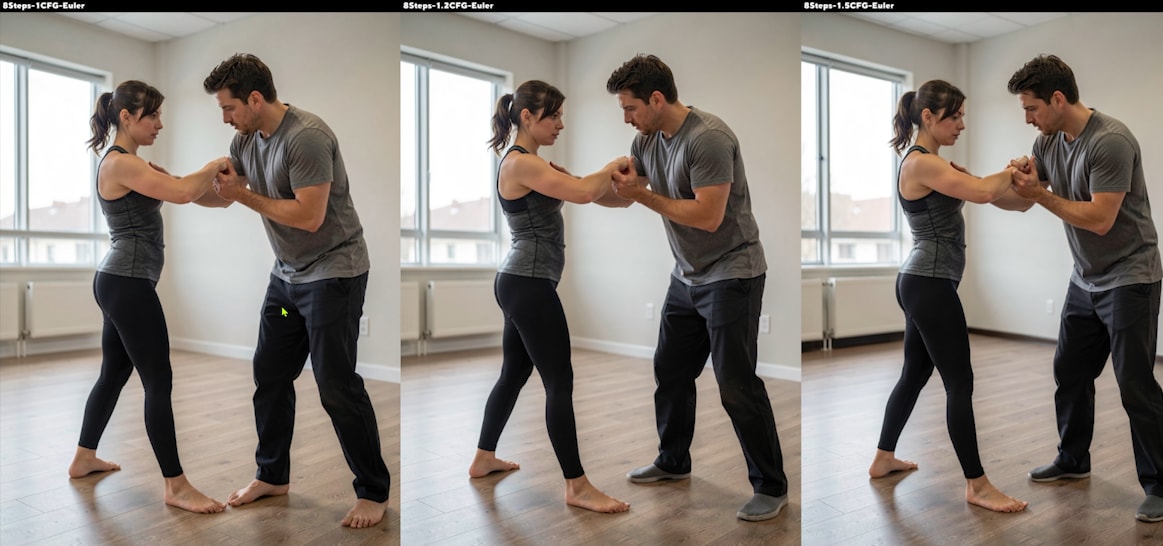
In another interaction scene:
- At CFG 1.2, the man’s fingers corrected
- But the woman’s ring finger looked incomplete
When I increased to CFG 1.5, both hands looked correct.

That’s another practical reality: complex scenes may require slightly different CFG tuning to stabilize multiple hands.
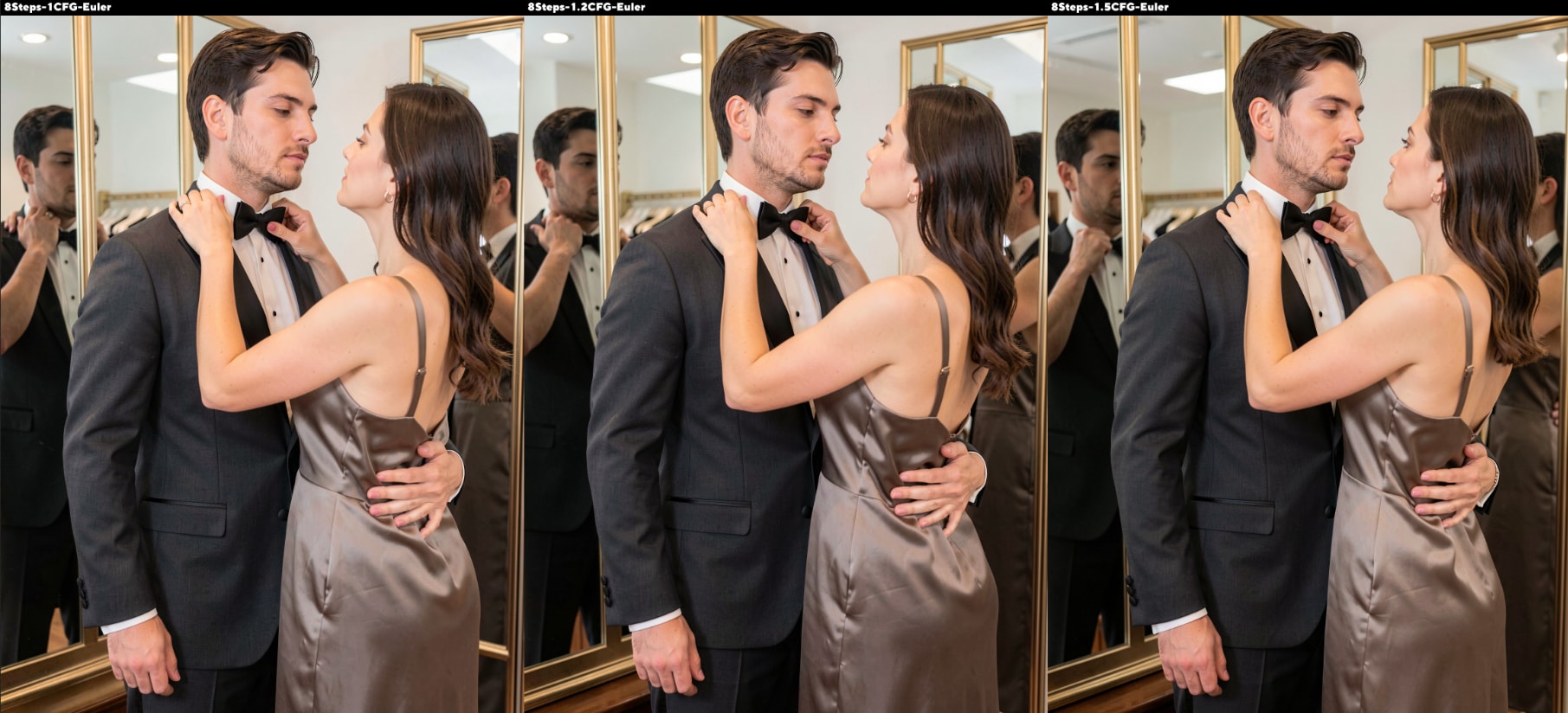
CFG Can Remove Extra Fingers
One of the more satisfying results:
- At CFG 1.0 and 1.2, the man had extra fingers
- At CFG 1.5, the extra finger disappeared
So if you’re getting “bonus fingers,” it can be worth nudging CFG upward — carefully.
Wrap-Up: What We Learned (and What’s Next)
Flux.2 Klein is fast, diverse, and often excellent at following prompts — but it’s also easier to trigger anatomy issues if you rely on the “4-step” expectation too rigidly.
From hundreds of tests, the big levers for reducing anatomy problems were:
- Pose difficulty
- Step count
- Sampler choice (especially res 2s)
- Careful CFG tuning slightly above 1
This article focused mainly on the image generation side of Flux.2 Klein. Next, I’ll go deeper into its image editing features — because that’s where things get really interesting.